 ThingzSafe
Android
Create or join a household
Free inventory remains on this phone. Existing customers use Sign in to existing account without an invitation code. To join another household, paste the invitation code first; the app validates it, then asks you to sign in or register using the invited email and accept.
Invitees do not pay separately, and joining replaces local inventory on this phone; back up anything you need first. To own a household, sign in, buy Household or Pro in Google Play and wait for verification before the ThingzSafe account is created. Then choose Create my household and explicitly upload this phone's inventory.
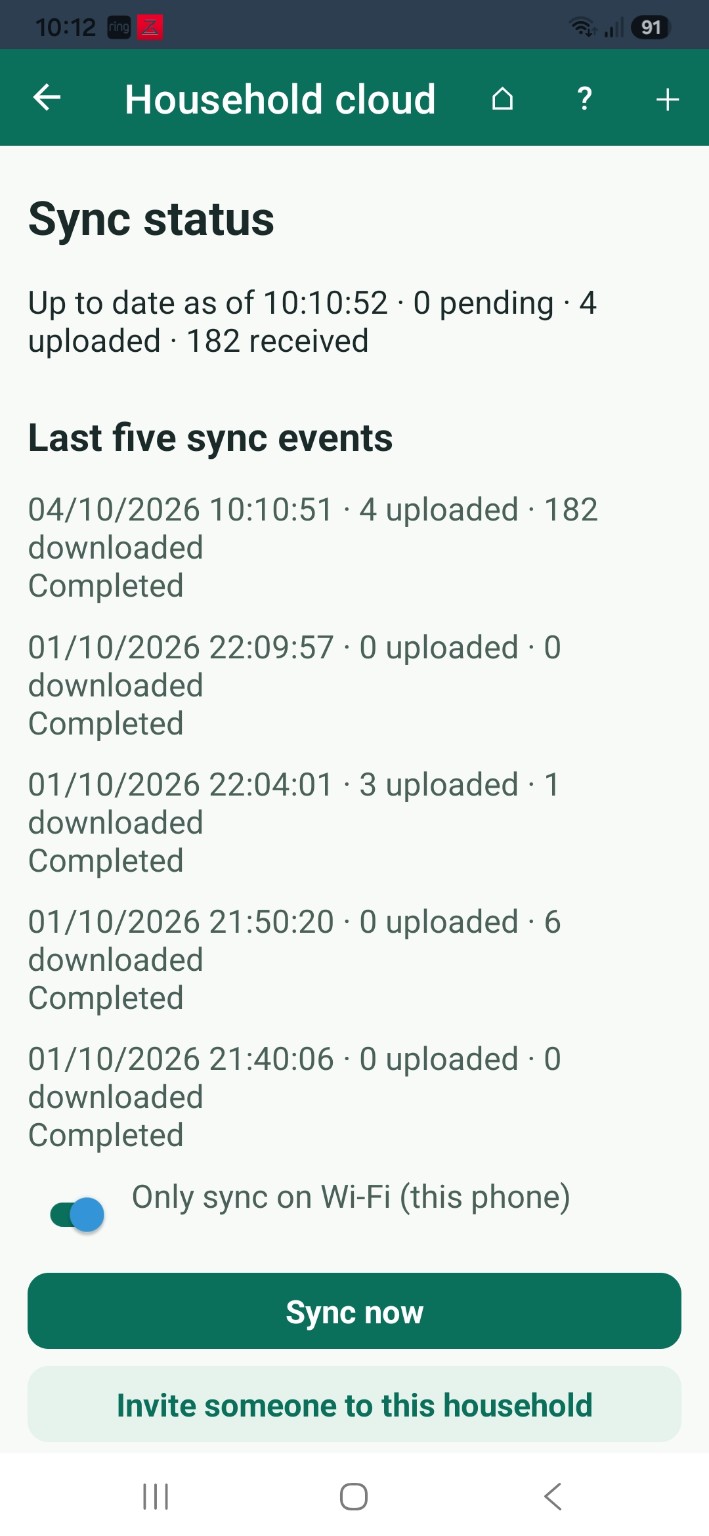
Failed or cancelled payment leaves local data untouched. After connection, Sync status shows recent events and Sync now. The Wi-Fi-only switch applies to this phone.
Owners can invite people here; only the owner can manage people and devices on the web. The invitation email is a draft for you to send.
Sign in to an existing account
- Free inventory works without a cloud account. Choose Sign in to existing account and use the identity already linked to your ThingzSafe account. You do not need an invitation code just to sign in.
- A login identity by itself does not create a ThingzSafe cloud account or grant access to inventory. New accounts are created only after the app validates a household invitation or verifies a Household / Pro Play purchase.
Create your own paid household
- Choose Create my household, sign in or register your email identity, then choose Household or Pro in Google Play. The server verifies the subscription before it creates the ThingzSafe account.
- After verification, return to Household cloud and choose Create my household. The person who paid owns the household. Choose explicitly whether to upload this phone’s local inventory; cancelling or failing payment leaves Free data on the phone.
- Keep the app open during the first sync. Wait for the status to show no pending uploads before relying on another device.
Join an invitation
- Paste the invitation code first. ThingzSafe validates it before asking you to sign in or register. Use exactly the email address to which the owner sent the invitation, then accept. Codes expire after seven days.
- Invitees do not need their own subscription. Joining replaces this phone’s local inventory with the shared household; make an encrypted backup first if you need to keep those records. It does not merge the two inventories.
Sync status and recovery
- Sync status shows whether the household is up to date, pending work, upload/download counts and the last five sync outcomes. Use Sync now to request an immediate sync.
- Only sync on Wi-Fi applies to this phone. Automatic Android sync runs while the app is in the foreground; startup also checks. Review sync conflicts when prompted.
Need more help or have a suggestion? Contact us.